
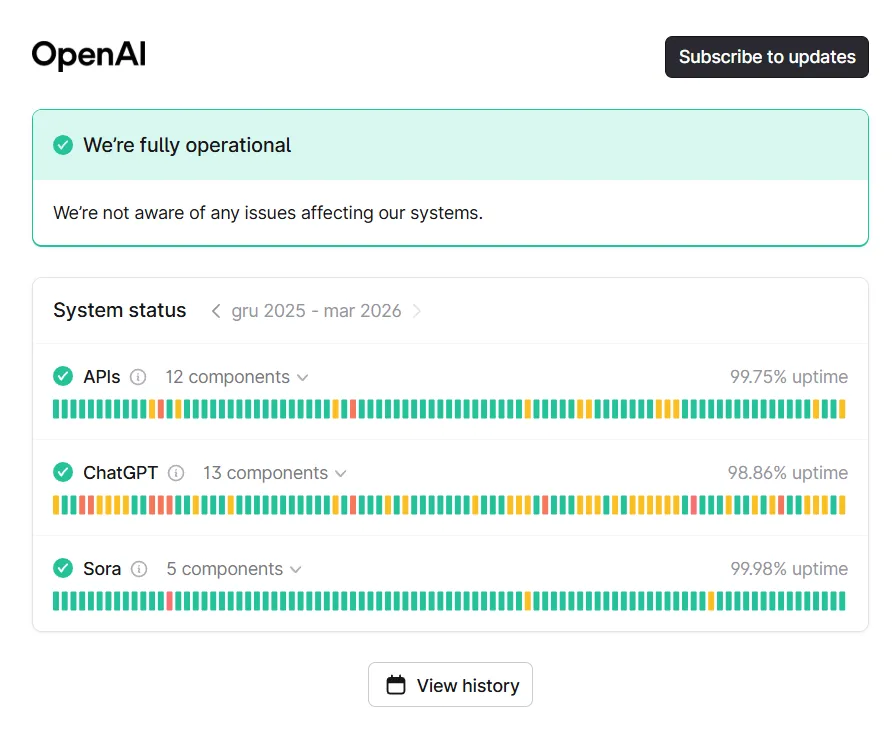
There is nothing more frustrating than watching ChatGPT generate a brilliant, lengthy response, only to stop halfway through and display that dreaded red message: “Network Error”. In 2026, with massive models like GPT-5.2 Thinking, this error is becoming more common—primarily because responses are more complex and connections must remain active for much longer periods.
The good news is that in 90% of cases, the error isn’t on OpenAI’s servers, but in how your browser or network handles long-duration data streaming.
TL;DR
- Shorten the output — Use the “Be concise” trick to avoid connection timeouts.
- Disable your VPN — This is the #1 cause of broken WebSocket streams.
- Turn off Web Search — Extra network requests increase the chance of a crash.
- Check status.openai.com before troubleshooting your own gear.
How to Fix “Network Error” in ChatGPT (Step-by-Step)
Fix 1: Limit the Response Length (The “Concise” Trick)
Why it works: ChatGPT has an internal timeout for every message. If a GPT-5.2 model takes more than 2 minutes to generate a response, the connection between your browser and the server might be dropped by your ISP or the browser itself.
How to do it: Instead of asking for a “full 10-page report,” break your prompt down:
- “Divide your answer into 3 parts.”
- “Give me the first section only, then wait for me to say ‘continue’.”
- “Write in short, digestible paragraphs.”
You can also append this to any prompt:
“Be concise. Direct answer only. Avoid flowery intros.”
Fix 2: Turn Off VPNs and Ad-blockers
Why it works: ChatGPT streams text token-by-token. VPNs and aggressive extensions (like uBlock Origin or Privacy Badger) often misinterpret this continuous data stream as a security risk or a “zombie” connection and kill it.
How to do it:
- Turn off your VPN entirely (the system app, not just the browser extension).
- Open ChatGPT in Incognito Mode (Ctrl + Shift + N).
If it works in Incognito: One of your extensions (like Grammarly or a page translator) is interfering with ChatGPT’s code.
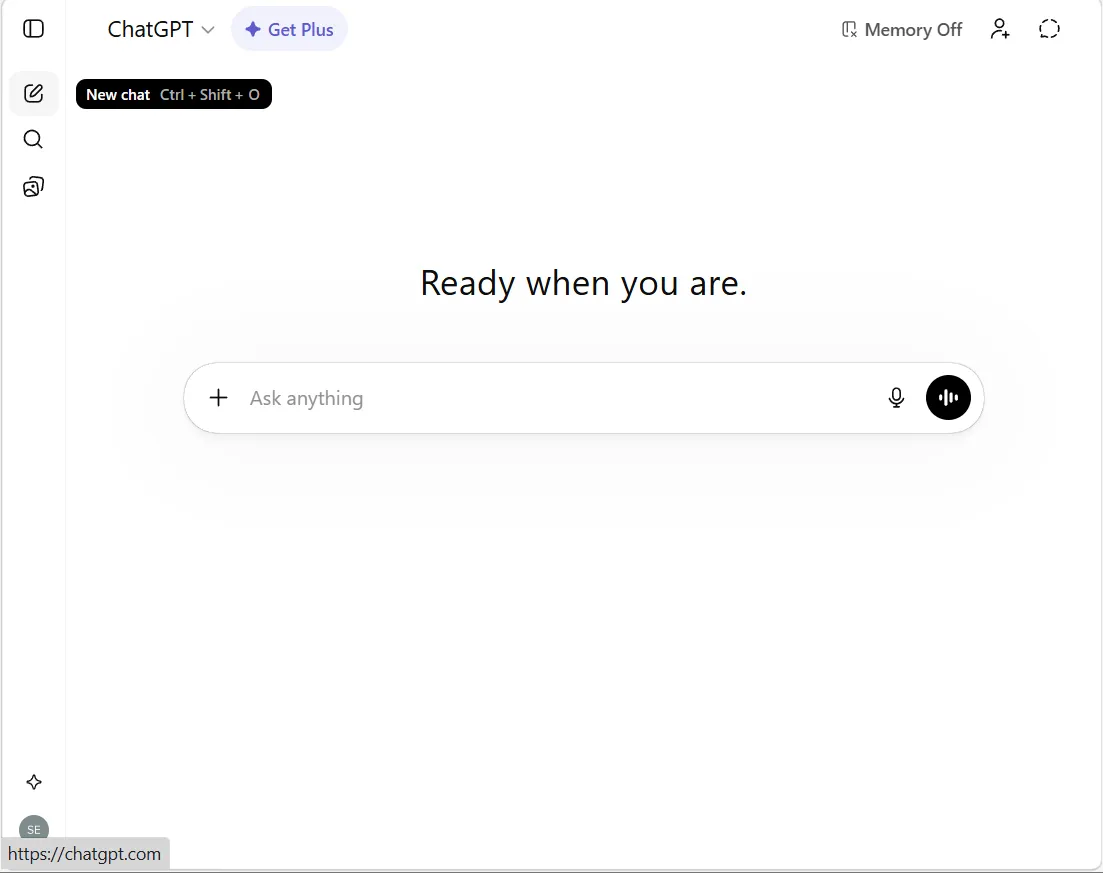
Fix 3: Switch to GPT-5.3 Instant
Why it works: “Thinking” models consume massive resources before they even start writing. If your connection is even slightly unstable, the “idle time” while the model thinks can cause the session to expire.
How to do it:
- Click the model name at the top of the chat.
- Select GPT-5.3 Instant (it is roughly 40% faster at establishing a connection).
Fix 4: Clear Local OpenAI Data (Browser Cache)
Why it works: In 2026, ChatGPT stores a huge amount of local cache data related to your history and new visual features. If this cache becomes corrupted, it causes the interface to lag and eventually drop the connection.
For Chrome / Edge:
- Click the Lock Icon next to the URL.
- Select Cookies and site data -> Manage on-device site data.
- Click the Trash icon next to
openai.comand reload.
Fix 5: Check Your Connection Quality (Jitter & Packet Loss)
ChatGPT is extremely sensitive to “jitter” (spikes in latency). Even a 500 Mbps connection will fail if your packet loss is high.
Run a test at fast.com and check your metrics:
| Metric | Threshold for Error |
|---|---|
| Latency (Unloaded) | > 100ms (High risk of timeout) |
| Upload Speed | < 5 Mbps (Hard to send complex prompts) |
| Packet Loss | > 1% (Primary cause of Network Errors) |
Fix 6: Use the Official Desktop App
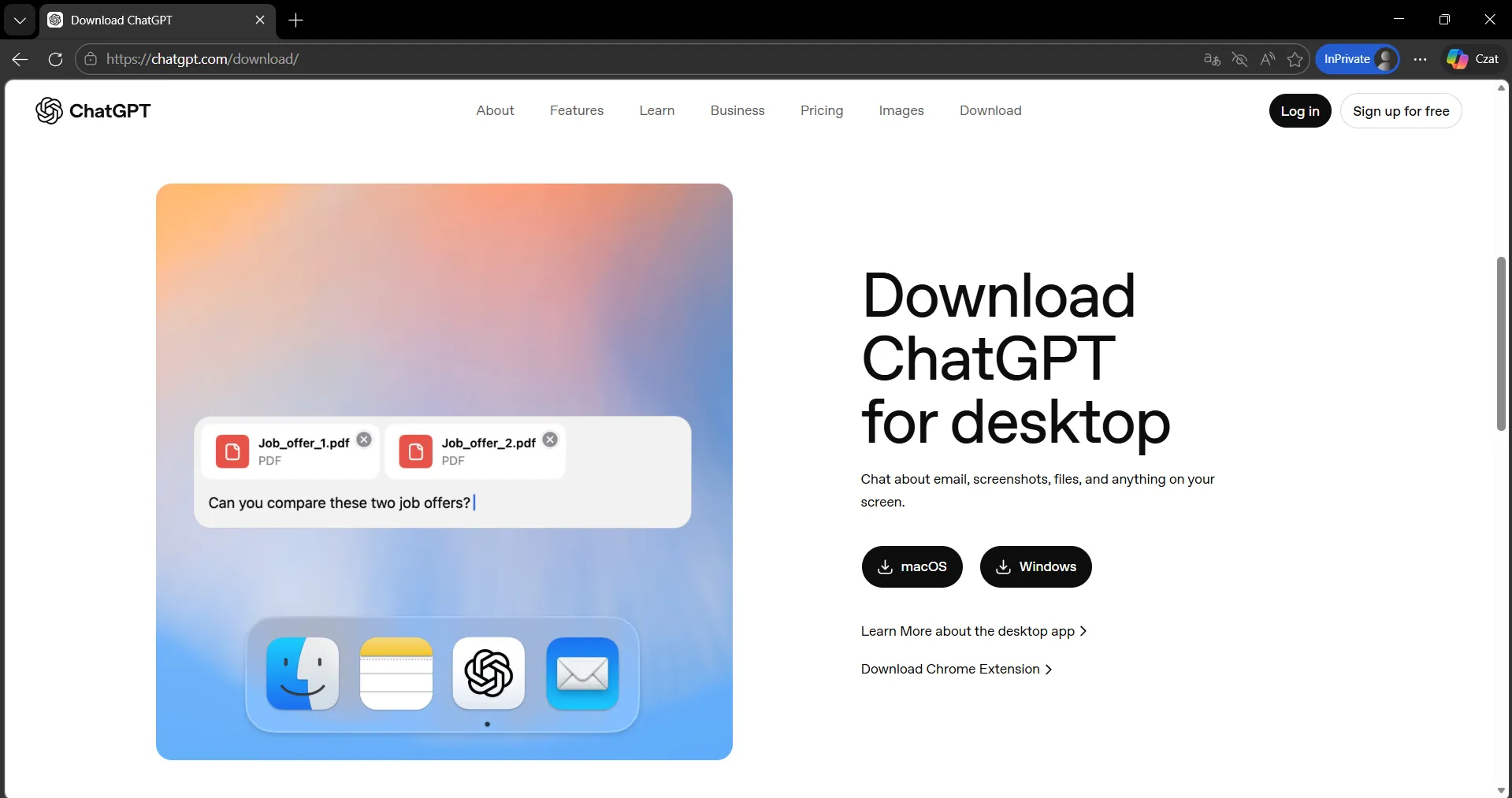
Why it works: Browsers (especially Chrome) are aggressive about “Memory Saving” and may put a ChatGPT tab to sleep while it is still generating a long response. The official app has higher system priority and better reconnection logic.
Download: openai.com/download
Technical Causes of “Network Error” (Deep Dive)
1. Exceeding the 400K Token Window In 2026, GPT-5.3 allows for gargantuan conversations. However, the longer the thread, the more data must be synced. If your chat has 100+ messages, network errors become almost inevitable. Fix: Start a fresh chat.
2. Web Search Interruption When ChatGPT browses the web, it connects to external sites. If a site is slow or blocked, the entire ChatGPT session can “hang,” leading to a network error notification.
3. Laptop Power Saving Modes If you are on battery power, your OS might throttle the network card. These micro-disconnects are fatal for token streaming.
Does ChatGPT Plus Fix Network Errors?
Yes, but only server-side. Plus users have “Priority Access” to more stable server clusters. During peak hours, when free users might get kicked due to gateway congestion, Plus users usually stay connected.
However, it won’t fix a network error caused by your own Wi-Fi or a bad VPN.
Conclusion & Quick Checklist
If you see a “Network Error,” follow this order:
- Refresh the page (F5).
- Copy your prompt and paste it into a New Chat.
- Disable your VPN and try Incognito mode.
- For long requests, add the instruction: “Divide into 3 parts.”
Is the error happening only with a specific model? If so, let me know which one—I can help you optimize your system settings specifically for OpenAI’s 2026 server architecture. Would you like me to check the optimal DNS settings for your region?